TastyPlug
A wavez.fm extension by Tastycat.
Use the userscript for the best experience: it starts by itself, while the bookmarklet has to be clicked on each visit.
Userscript
- Install a userscript manager: Violentmonkey or Tampermonkey.
- Open the TastyPlug userscript and confirm the install.
- Open a wavez.fm room. The TastyPlug panel appears over the stage.
Bookmarklet
TastyPlugDrag to your bookmarks bar
This button is a bookmark. Drag it to your bookmarks bar, or right-click it and bookmark it.
- Drag the TastyPlug link to your bookmarks bar.
- Open wavez.fm and click the bookmark. TastyPlug starts in the room you're in, or in the next room you enter.
- Click it again whenever you open or reload wavez.
TastyPlug updates itself; there is no need to reinstall.
- Use the userscript or the bookmarklet, not both.
- You must be signed in. As a guest, chat shows
Must be logged in to use tastyplug!and TastyPlug waits until you sign in.
The panel
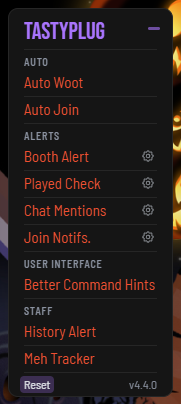
| Action | How |
|---|---|
| Move | Drag the TASTYPLUG title |
| Collapse / expand | Click the title, or the - / + button at its right |
| Turn a feature on or off | Click its name: blue is on, red is off |
| Feature settings | Click the cog on the feature's row |
| Reset | Click Reset in the footer, then Confirm within 3 seconds |
Reset puts every setting back to its default, including the panel position, and keeps your Chat Mentions word list.
Features
Features are grouped under Auto, Alerts, User Interface and Staff. Everything starts switched off.
Auto
Auto Woot - Woots every track for you, after a random delay of 1 to 10 seconds. It does not woot your own track or override a meh you cast yourself.
Auto Join - Keeps you in the DJ queue. Whenever you are not in the queue, it joins you, unless the queue is locked or full.
Alerts
Booth Alert - Warns you shortly before your turn to DJ, with a short chime:
[Booth Alert] It's almost your turn to DJ! Make sure to pick a song!
- Spot (1-99, default 3): the queue spot at which to alert.
- Chime (default on): play the chime with the alert.
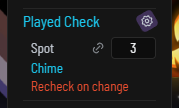
Played Check - Checks your next song when you reach your chosen queue spot. In the Tastycat room the check
is Tastybot's OP check:
[Played Check] Next song: Not OP | All Time: 3 | Last Played: 5 days ago
In other rooms it is wavez's own recently played check:
[Played Check] Next song: Recently played | Last Played: 2h15 ago
[Played Check] Next song: Not in history!
- Spot (1-99, default 3): the queue spot at which to check.
- Chime (default on): play the chime when the song is OP or recently played.
- Recheck on change (default off): check again whenever your next song changes.
Click beside Spot to keep Booth Alert and Played Check on the same spot.
Chat Mentions - Plays the chime when someone else's message contains one of your words or phrases. Matching ignores case and punctuation. Words must be at least 3 letters.
Join Notifs. - Posts <name> joined the room when chosen kinds of user join.
- Ranks: wavez admins and ambassadors, and the room's host, co-hosts, managers, bouncers and resident DJs.
- Friends: people you follow.
- Level 1s (staff only): level 1 users, shown as
[Lvl 1] <name> joined the room.
User Interface
![Command suggestions with "/opcheck " typed in the message box, showing /opcheck with the Tastycat icon, its arguments [playlist | link] marked as the current argument, and the description "Checks whether a song is overplayed."](/images/tastyplug/command-hints.png)
Better Command Hints - Shows each command's arguments beside it as you type. Tab completes the command and its arguments.
Staff
History Alert - Chimes when a new song starts that is in the room's play history (the last 80 plays):
This song is on the history! (played N songs ago)
Meh Tracker - Posts <name> meh'd the song! the first time each person mehs the current
track.
Slash commands
Type these in the room's message box. Nothing is posted to the room. Tastycat room only.
| Command | Checks |
|---|---|
/opcheck playlist | The next song in your active playlist |
/opcheck <link> | A YouTube or SoundCloud link |
Tastybot answers privately:
[!opcheck] All Time: 3 | Month: 3 | Week: 1 | Last Played: 5 days ago | Not OP!
Privacy
- Settings are stored in your browser only.
- Room data comes from wavez's official extension bridge. Votes and queue joins go through the bridge's own actions.
- The panel and chat lines exist only in your own browser.
- Your playlists and the room's play history are read with your signed-in session, the same way the site does.
- OP checks send Tastybot a private bot command and read its private reply.
- In the Tastycat room, TastyPlug privately tells Tastybot its version once each time you enter the room, to confirm TastyPlug can reach it. Nothing is posted in chat.
©2026 Nodle. Based on the original TastyPlug for plug.dj by Olivier Houle (Fungus) and Chip (git).
Licensed under the GNU GPL v3 or later.